Tuesday, November 19, 2019

Setting Up Kubernetes (K8s) on Windows


DOWNLOAD & INSTALL :

1. Install Google Cloud SDK

2. Install kubectl
      gcloud components install kubectl


3. Install minikube
      Download, Rename and Copy to location
      C:\ & C:\Program Files (x86)\Google\Cloud SDK\google-cloud-sdk\bin
      minikube.exe 

4. Start Minikube
      minikube version
      minikube start
      minikube start --show-libmachine-logs --alsologtostderr
         minikube status
         minikube ssh
      minikube stop
      minikube delete

      minikube logs

     enable minikube addons:     
     minikube addons list
        minikube addons enable dashboard


5. kubectl Helper Commands:
      kubectl version -o json
      kubectl get namespace
      kubectl config use-context minikube
      kubectl cluster-info
      kubectl config view
      kubectl get nodes

      kubectl get all
      kubectl get all -n kube-system


6. Installing K8s Dashboard using kubectl

1. Deploy the Kubernetes dashboard to your single node cluster
kubectl apply -f  https://raw.githubusercontent.com/kubernetes/dashboard/v1.10.1/src/deploy/recommended/kubernetes-dashboard.yaml

2. Create a file => dashboard-admin-sa.yaml
# ------------------- Dashboard Service Account ------------------- #
apiVersion: v1
kind: ServiceAccount
metadata:
  name: dashboard-admin-sa
  namespace: kube-system
---
# ------------------- Dashboard-Cluster-Role ------------------- #
apiVersion: rbac.authorization.k8s.io/v1beta1
kind: ClusterRoleBinding
metadata:
  name: dashboard-admin-sa
roleRef:
  apiGroup: rbac.authorization.k8s.io
  kind: ClusterRole
  name: cluster-admin
subjects:
- kind: ServiceAccount
  name: dashboard-admin-sa
  namespace: kube-system


6. Open Cmder

7. Apply the service account and cluster role binding to your cluster
    kubectl apply -f dashboard-admin-sa.yaml

8. Start the kubectl proxy
    kubectl proxy

9. Get Token
    kubectl get secrets -n kube-system
    kubectl describe secrets dashboard-admin-sa -n kube-system

10. Run Dashboard
    minikube addons open dashboard
    minikube dashboard --url
 curl http://127.0.0.1:8001/ 
 http://localhost:8001/api/v1/namespaces/kube-system/services/https:kubernetes-dashboard:/proxy/

11. Delete Dasboard
      kubectl get all -n kube-system
      kubectl delete deployment kubernetes-dashboard --namespace kube-system
      service, role, rolebinding, sa, secret


12. Choose Token
paste the output from the previous command into the Token field, and
choose SIGN IN


Intro to Kubernetes

What is Kubernetes? Introduction to Kubernetes
Kubernetes is an orchestration engine and open-source platform for managing containerized application workloads and services, that facilitates both declarative configuration and automation. Kubernetes is also commonly referred as K8s.

Advantages of Kubernetes
Kubernetes can speed up the development process by making easy, automated deployments, updates (rolling-update) and by managing our apps and services with almost zero downtime. It also provides self-healing. Kubernetes can detect and restart services when a process crashes inside the container.

Kubernetes Architecture


Kubernetes Components
Web UI (Dashboard) :
Dashboard is a web-based Kubernetes user interface. You can use Dashboard to deploy containerized applications to a Kubernetes cluster, troubleshoot your containerized application, and manage the cluster itself along with its attendant resources.

Kubectl :
Kubectl is a command line configuration tool (CLI) for Kubernetes used to interact with master node of kubernetes. Kubectl has a config file called kubeconfig, this file has the information about server and authentication information to access the API Server.

Kubernetes Master :
Kubernetes Master is a main node responsible for managing the entire kubernetes clusters.
It handles the orchestration of the worker nodes.

It has three main components that take care of communication, scheduling and controllers.
API Server - Kube API Server interacts with API, Its a frontend of the kubernetes control plane.
Scheduler - Scheduler watches the pods and assigns the pods to run on specific hosts.
Kube-Controller-Manager - Controller manager runs the controllers in background which runs different tasks in Kubernetes cluster.

Some of the controllers are,
Node controller - Its responsible for noticing and responding when nodes go down.
Replication controllers - It maintains the number of pods. It controls how many identical copies of a pod should be running somewhere on the cluster
Replicasets controllers ensure number of replication of pods running at all time.
Endpoint controllers joins services and pods together.
Services account and Token controllers handles access managements.
Deployment controller provides declarative updates for pods and replicasets.
Daemon sets controller ensure all nodes run a copy of specific pods.
Jobs controller is the supervisor process for pods carrying out batch jobs
Services allow the communication.
Sateful sets specialized pod which offers ordering and uniqueness

Etcd :
etcd is a simple distribute key value store. kubernetes uses etcd as its database to store all cluster data. some of the data stored in etcd is job scheduling information, pods, state information and etc.

Worker Nodes :
Worker nodes are the nodes where the application actually running in kubernetes cluster, it is also know as minion. These each worker nodes are controlled by the master node using kubelet process.

Container Platform must be running on each worker nodes and it works together with kubelet to run the containers, This is why we use Docker engine and takes care of managing images and containers. We can also use other container platforms like CoreOS, Rocket.

Requirements of Worker Nodes:
1. kubelet must be running
2. Docker container platform
3. kube-proxy must be running
4. supervisord

Kubelet :
Kubelet is the primary node agent runs on each nodes and reads the container manifests which ensures that containers are running and healthy.

Kube-proxy :
Kube-proxy is a process helps us to have network proxy and load balancer for the services in a single worker node. It performs network routing for tcp and udp packets, and performs connection folding. Worker nodes can be exposed to internet via kube-proxy.

Pods :
A group of one or more containers deployed to a single node.
Containers in a pod share an IP Address, hostname and other resources.
Containers within the same pod have access to shared volumes.
Pods abstract network and storage away from the underlying container. This lets you move containers around the cluster more easily.
With Horizontal Pod Auto scaling, Pods of a Deployment can be automatically started and halted based on CPU usage.
Each Pod has its unique IP Address within the cluster.
Any data saved inside the Pod will disappear without a persistent storage

Deployment:
A deployment is a blueprint for the Pods to be created.
Handles update of its respective Pods.
A deployment will create a Pod by it’s spec from the template.
Their target is to keep the Pods running and update them (with rolling-update) in a more controlled way.
Pod(s) resource usage can be specified in the deployment.
Deployment can scale up replicas of Pods.

Service
A service is responsible for making our Pods discoverable inside the network or exposing them to the internet. A Service identifies Pods by its LabelSelector.

Types of services available:
1. ClusterIP
The deployment is only visible inside the cluster
The deployment gets an internal ClusterIP assigned to it
Traffic is load balanced between the Pods of the deployment

2. Node Port
The deployment is visible inside the cluster
The deployment is bound to a port of the Master Node
Each Node will proxy that port to your Service
The service is available at http(s)://:/
Traffic is load balanced between the Pods of the deployment

3. Load Balancer
The deployment gets a Public IP address assigned
The service is available at http(s)://:/
Traffic is load balanced between the Pods of the deployment

Hope you have got an idea about basics and introduction of kubernetes. In the next post, we have shown you How to Install & Configure Kubernetes Cluster with Docker on Linux.

<80> Also refer other articles,
Learn Kubernetes Basics Beginners Guide
How to Install Kubernetes Cluster with Docker on Linux
Create Kubernetes Deployment, Services & Pods Using Kubectl
Create Kubernetes YAML for Deployment, Service & Pods

VM vs Docker Containers

Monday, November 18, 2019

Saturday, November 16, 2019

GraphQL

REST is a software architecture that defines a set of constraints to be used for creating web services, Introduced in the year 2000.
Whereas GraphQL is a data query and manipulation language for APIs, and runtime to fulfill queries with existing data, developed by Facebook in 2011.
The following Image shows the Timeline/Journey from RPC to GraphQL
Advantages of Graphql over REST
  • Resolves over-fetching and under-fetching
Apps Using REST APIs results in over-fetching as well as under-fetching because of the entire data in that endpoint will be returned in the JSON format. This causes performance and scalability issues.
Whereas GraphQL with its queries, schemas, and resolvers enable developers to design API call only specific data requirement, This resolves Over-fetching and Under-fetching challenges.
  • Faster product Iterations on the frontend
When designing REST APIs, It can be a bottleneck when it comes to faster or quick iterations on the frontend. The reason behind this is because of REST APIs design endpoints according to the views in the application.
With GraphQL, Developers can write queries specifying their data requirement, and the iterations for developing frontend can continue without having to change the backend
  • GraphQL enables better analytics on the backend
Apps that use REST APIs get entire data in an endpoint, using this application owner can’t gain insights on the usage of specific data elements since the entire data is returned every time.
On the other hand, GraphQL uses resolvers, and they implement particular fields in a type. That way Application owner can track the performance of the resolvers, and find out whether the systems need performance tuning.
  • The Advantages of the GraphQL schema
GraphQL uses Schema Definition Language (SDL), The schema includes all the types used in an API, It defines how a client should access data on the server. After defining schema by the developers, Both the front and backend teams work parallel as they know the structure of the data. This helps to improve the productivity of the team.
Drawbacks of REST API?
The problem with REST APIs is they have multiple endpoints. These require round-trips to get the data. Every endpoint represents a resource, If we need data from multiple resources, It requires multiple round-trips to get the data. The language needed to request is very limited in the REST API.
In REST there is a problem of over-fetching, for example: If a client wants to select a specific record in the resource, the REST API will always fetch all of the fields irrespective of the client’s needs. It is over usage of network and memory resources but both client-side as well as server-side
Data fetching with GraphQL vs REST
The Typical usage of REST API will fetch data by calling multiple API endpoints, and the server will return all the data in those endpoints.
GraphQL uses queries, schema, and resolvers. Developers can specify the exact data they need, they can even create and execute nested queries.
GraphQL proves to be very useful where it comes to fetching data that satisfies the given condition. Example:- Instead of requesting all the students in the school, you can specifically ask for the students of a particular batch.

Monday, November 11, 2019

Scaling Horizontally and Vertically for Databases

Scaling Horizontally and Vertically for Databases

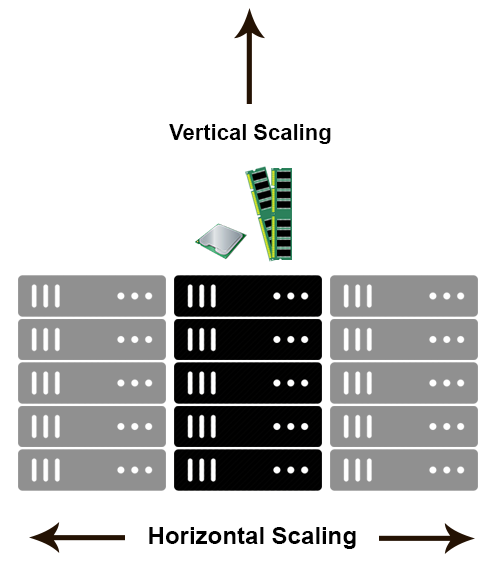
Horizontal scaling means that you scale by adding more machines into your pool of resources whereas Vertical scaling means that you scale by adding more power (CPU, RAM) to an existing machine.
An easy way to remember this is to think of a machine on a server rack, we add more machines across the horizontal direction and add more resources to a machine in the vertical direction.


In a database world
Horizontal-scaling is often based on the partitioning of the data i.e. each node contains only part of the data, in
Vertical-scaling the data resides on a single node and scaling is done through multi-core i.e. spreading the load between the CPU and RAM resources of that machine.

With horizontal-scaling it is often easier to scale dynamically by adding more machines into the existing pool,
Vertical-scaling is often limited to the capacity of a single machine, scaling beyond that capacity often involves downtime and comes with an upper limit.

Good examples of horizontal scaling are Cassandra, MongoDB, Google Cloud Spanner .. and a
Good example of vertical scaling is MySQL — Amazon RDS (The cloud version of MySQL). It provides an easy way to scale vertically by switching from small to bigger machines. This process often involves downtime.
In-Memory Data Grids such as GigaSpaces XAP, Coherence etc.. are often optimized for both horizontal and vertical scaling simply because they’re not bound to disk.
Horizontal-scaling through partitioning and vertical-scaling through multi-core support.
You can read more on this subject in my earlier posts: Scale-out vs Scale-up and The Common Principles Behind the NOSQL Alternatives

Friday, November 1, 2019

Docker Commands

Set Environment Settings:

  • DOCKER_CERT_PATH=C:\Users\jini\.docker\machine\certs
  • DOCKER_HOST=tcp://192.168.99.100:2376
  • DOCKER_TLS_VERIFY=1
  • DOCKER_TOOLBOX_INSTALL_PATH= C:\Program Files\Docker Toolbox

Docker Lifecycle:

  • docker run creates a container.
  • docker stop stops it.
  • docker start will start it again.
  • docker restart restarts a container.
  • docker rm deletes a container.
  • docker kill sends a SIGKILL to a container.
  • docker attach will connect to a running container.
  • docker wait blocks until container stops.
If you want to run and then interact with a container, docker start then docker attach to get in.
If you want to poke around in an image, docker run -t -i to open a tty.

Docker Info:

  • docker ps -a shows running and stopped containers.
  • docker inspect looks at all the info on a container (including IP address).
  • docker logs gets logs from container.
  • docker events gets events from container.
  • docker port shows public facing port of container.
  • docker top shows running processes in container.
  • docker diff shows changed files in the container’s FS.

Docker Images/Container Lifecycle:

  • docker images shows all images.
  • docker import creates an image from a tarball.
  • docker build creates image from Dockerfile.
  • docker commit creates image from a container.
  • docker rmi removes an image.
  • docker insert inserts a file from URL into image. (kind of odd, you’d think images would be immutable after create)
  • docker load loads an image from a tar archive as STDIN, including images and tags (as of 0.7).
  • docker save saves an image to a tar archive stream to STDOUT with all parent layers, tags & versions (as of 0.7).

Info

  • docker history shows history of image.
  • docker tag tags an image to a name (local or registry).

Docker Compose

Define and run multi-container applications with Docker.
  • docker-compose --help
  • create docker-compose.yml
    version: '3'
    services:
      eureka:
        restart: always
        build: ./micro1-eureka-server
        ports:
          - "8761:8761"
  • docker-compose stop
    docker-compose rm -f
    docker-compose build
    docker-compose up -d
    docker-compose start
    docker-compose ps
  • Scaling containers running a given service
    docker-compose scale eureka=3
  • Healing, i.e., re-running containers that have stopped
    docker-compose up --no-recreate

Docker Hub

Docker.io hosts its own index to a central registry which contains a large number of repositories.

Dockerfile

Instructions

  •     .dockerignore
  •     FROM Sets the Base Image for subsequent instructions.
  •     MAINTAINER (deprecated - use LABEL instead)
  •     RUN execute any commands in a new layer on top of the current image
  •     CMD provide defaults for an executing container.
  •     EXPOSE informs Docker that the container listens on the specified network ports at runtime.
  •     ENV sets environment variable.
  •     ADD copies new files, directories or remote file to container. Invalidates caches.
        Avoid ADD and use COPY instead.
  •     COPY copies new files or directories to container. By default this copies as root regardless    of the USER/WORKDIR settings. Use --chown=: to give ownership to another user/group. (Same for ADD.)
  •     ENTRYPOINT configures a container that will run as an executable.
  •     VOLUME creates a mount point for externally mounted volumes or other containers.
  •     USER sets the user name for following RUN / CMD / ENTRYPOINT commands.
  •     WORKDIR sets the working directory.
  •     ARG defines a build-time variable.
  •     ONBUILD adds a trigger instruction when the image is used as the base for another build.
  •     STOPSIGNAL sets the system call signal that will be sent to the container to exit.
  •     LABEL apply key/value metadata to your images, containers, or daemons.

Examples: Examples
Best Practices: Best to look at http://github.com/wsargent/docker-devenv and the best practices / take 2 for more details.
Volumes:
Docker volumes are free-floating filesystems. They don’t have to be connected to a particular container.
Volumes are useful in situations where you can’t use links (which are TCP/IP only). For instance, if you need to have two docker instances communicate by leaving stuff on the filesystem.
You can mount them in several docker containers at once, using docker run -volume-from

Get Environment Settings
docker run --rm ubuntu env
Delete old containers
docker ps -a | grep 'weeks ago' | awk '{print $1}' | xargs docker rm
Delete stopped containers
docker rm `docker ps -a -q`
Show image dependencies
docker images -viz | dot -Tpng -o docker.png
Original
https://github.com/wsargent/docker-cheat-sheet/blob/master/README.md